StateDMI / Update Java / Overview
This documentation describes the steps needed when updating the Java version.
Introduction
Updated: 2026-03-02
StateDMI is written in the Java language and is developed using the Eclipse IDE, which runs Java. Java is a mature language but continues to be enhanced over time. The Java development tools must also be updated to be compatible with newer operating systems. This documentation summarizes steps that were taken to update Java from one version to another. The documentation is based on similar documentation that was created for the TSTool software.
Update Java from Version 8 to 11
Java 8 was used for many years due to its stability. StateDMI 6.0.0 was updated to use Java 11 in 2026 and the plan is to update StateDMI to newer long-term support (LTS) releases every several years to ensure that StateDMI's version of Java is up to date. StateDMI will be updated after TSTool's Java version is updated.
Updating the version from 8 to 11 required a number of basic changes,
including handling simple version number like 11 whereas previously 1_8 or 18 was used
due to Java historical version conventions.
The following steps were taken to update an existing development environment from Java 8 to 11. The developer documentation was updated as software was updated.
- Backup files:
- Copy the entire
StateDMIcdss-app-statedmi-mainrepository development folder local repository working files to a backup folder. These files will only be used for comparison as necessary and can be removed in the future. - Other repositories (and Eclipse projects) were backed up when TSTool was updated and can be referenced as needed. The StateDMI main application files are the focus for this update since the other libraries were previously updated with TSTool.
- Copy the entire
- Install Java 11:
- Previously done for TSTool.
- OK to leave Java 8 if it exists because it may be used by other software (can remove later).
- Install Eclipse 2022-06, which is the last Eclipse version that runs with Java 11:
- Previously done for TSTool.
- Make sure that the Eclipse version is compatible with the Java version used with Eclipse. Otherwise, an error may result that is difficult to troubleshoot.
- OK to leave 2019-03 if it exists because it may be used by other software.
- Update the Eclipse run script to use the latest Eclipse and Java:
build-util/run-eclipse-win64.cmd
- Update the runtime scripts:
- Update the
resources/runtime/bin/README.mdfile. - Unlike TSTool, StateDMI does not currently provide a run-time script.
- Update the
- Update the Linux distribution build scripts:
- Unlike TSTool, StateDMI does not currently provide a Linux build script.
-
Run Eclipse:
- Use the
build-util/run-eclipse-win64.cmdscript in a Windows command shell.- It should find the Eclipse 2022-06 version.
- If an error dialog is shown, try running the
eclipse.exeprogram in the Eclipse installation folder (cancel before opening the workspace). - If the above works but still have an error from the run script, try editing the run script to add other command line parameters until the problem is identified.
-
A warning may be shown as follows. Press Continue to update the workspace configuration.
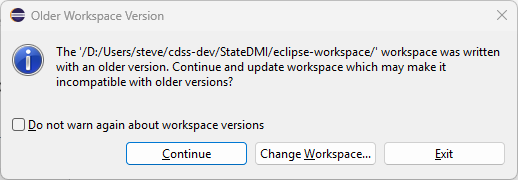
Older Workspace Version Warning (see full-size image)
-
A dialog may be shown as follows to update Eclipse plug-ins. In this case, the Vrapper plug-in was previously installed to provide "vim" editor behavior within Eclipse. This may not be shown if plug-ins were previously updated for the TSTool development environment. Press Next > to update the plugins that are listed. Additional confirmation steps may occur.
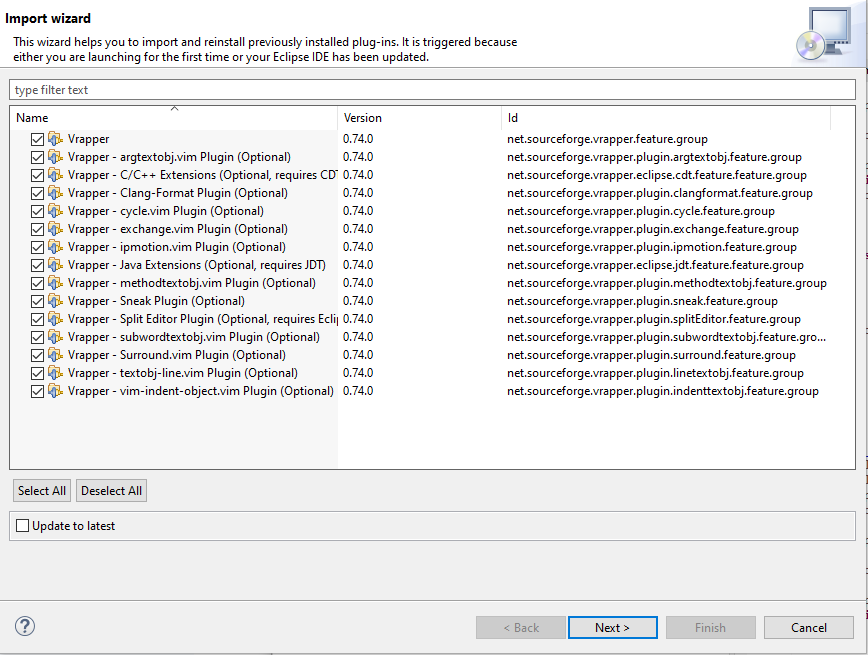
Plugin Import Wizard (see full-size image)
-
Eclipse will rebuild the projects and may prompt to restart to apply the software update. Pressing Restart Now to continue may not properly restart. Restart Eclipse using the run script.
- Use the
-
Additional Eclipse configuration:
- The Java software and Java compatibility version need to be updated to Java 11. See the New Developer Setup / Overview / Additional Eclipse Configuration documentation.
- StateDMI steps will be similar, but for StateDMI projects (TSTool uses additional libraries, repositories, and Eclipse projects).
- Changes that are specific to StateDMI are:
- Use the
cdss-app-statedmi-mainrepository for the main StateDMI application.
- Use the
-
Code changes:
-
The following project changes were made:
Project Change cdss-app-statedmi-mainHad to delete the project and then re-import. cdss-lib-processor-ts-javaWork on TSTool had moved the lib/Microsoft-SQLServer/mssql-jdbc-13.2.1.jre11.jarJDBC driver file intocdss-lib-processor-ts-java, which is not used with StateDMI. To support consistent libraries for TSTool and StateDMI, move the jar file into thecdss-lib-common-javarepository and add to the build path. The TSTool configuration is adjusted similarly.Various Update StateDMI code to conform to Java 11 standards, including: - Creating Java
Integerand other types now use thevalueOf()method. - Mouse right-click events are updated from the
getModifiers()togetModifiersEx()method.
- Creating Java
-
After the above, errors remained due to StateDMI commands needing to be updated for new library code.
Package Class Change rti.tscommandprocessor.commands.tableAppendTable_Commandand dialogCopy new code from cdss-lib-processor-ts-javato fix errors.rti.tscommandprocessor.commands.tableCompareTables_Commandand dialogCopy new code from cdss-lib-processor-ts-javato fix errors.rti.tscommandprocessor.commands.tableManipulateTableString_Commandand dialogCopy new code from cdss-lib-processor-ts-javato fix errors.rti.tscommandprocessor.commands.tableTableMath_Commandand dialogCopy new code from cdss-lib-processor-ts-javato fix errors.rti.tscommandprocessor.commands.tableWriteTableToHTML_Commandand dialogCopy new code from cdss-lib-processor-ts-javato fix errors.Other similar changes can be made in the future by copying the latest cdss-lib-processor-ts-javaclasses if new functionality is needed.
-
-
Build system:
- Update the
conf/product.propertiesfiles to use Java 11 instead of 8. - Adjust library dependencies based on the above changes.
- Update the
cdss-util-buildtoolsproject for Java 11.- These changes were previously made for TSTool.
- Add support for simple integer main version like
11and phase out more complex1.8notation.common.xmlcommon-installer.xmlconf/product.properties- default properties
- Update the
- The
cdss-app-statedmi-main/installer/CDSS/StateDMI.nsiis OK without changes. - The
cdss-app-statedmi-main/externals/CDSS/installer/CDSS/cdss.nshis OK without changes. - Update the
cdss-util-buildutils/externals/NSIS_Common/JRE.nsh:- This has previously been changed for TSTool.
- As of Java 9, the
rt.jarfile is not used and instead Jigsaw modules are used. Disable the old code.
- Update
launch4j:- This has previously been changed for TSTool.
- Successfully created an NSIS installer with the above changes, but StateDMI had an error launching.
- Use
launch4jversion 3.50 and save in thecdss-util-buildtools/lib/launch4jfolder. - Save the old version to the
launch4j-javafolder. - This did not end up being the issue but keep the newer version.